Choose a path when sensitive information must be removed
You have an editable source
- Remove the sensitive wording or image itself from a copy of the source. Hiding it or changing the visible area is insufficient. Check comments, revision history, attachments and document properties for the same information.
- Create a new PDF from the cleaned source and save it separately. Inspect every page, attachments, annotations, document properties and extractable text. A fresh export alone cannot guarantee complete removal.
You only have the PDF and cannot recreate it
- You need a PDF removal operation, not a drawing or covering tool. First check official documentation for the actual product and version: it must apply data removal and provide checks for hidden information.
- Distinguish marking areas from applying removal, and save a result separate from the original. Close and reopen it, checking visible pages, search, copy, extraction, attachments, annotations and metadata.
- Text search may not find sensitive information inside images or scans. If you cannot perform the required checks, or information remains, withhold the file and ask its author for a cleaned copy.
Our measurement establishes that the fictional reference survives covering and cropping. We have not run a specific redaction product or verified a sanitized output. These steps do not certify removal of every hidden data channel, and failed search alone does not establish security. We do not establish an external tool’s price, version or upload behavior: check its official documentation and first test with fictional material rather than sensitive documents.
Two kinds of hiding
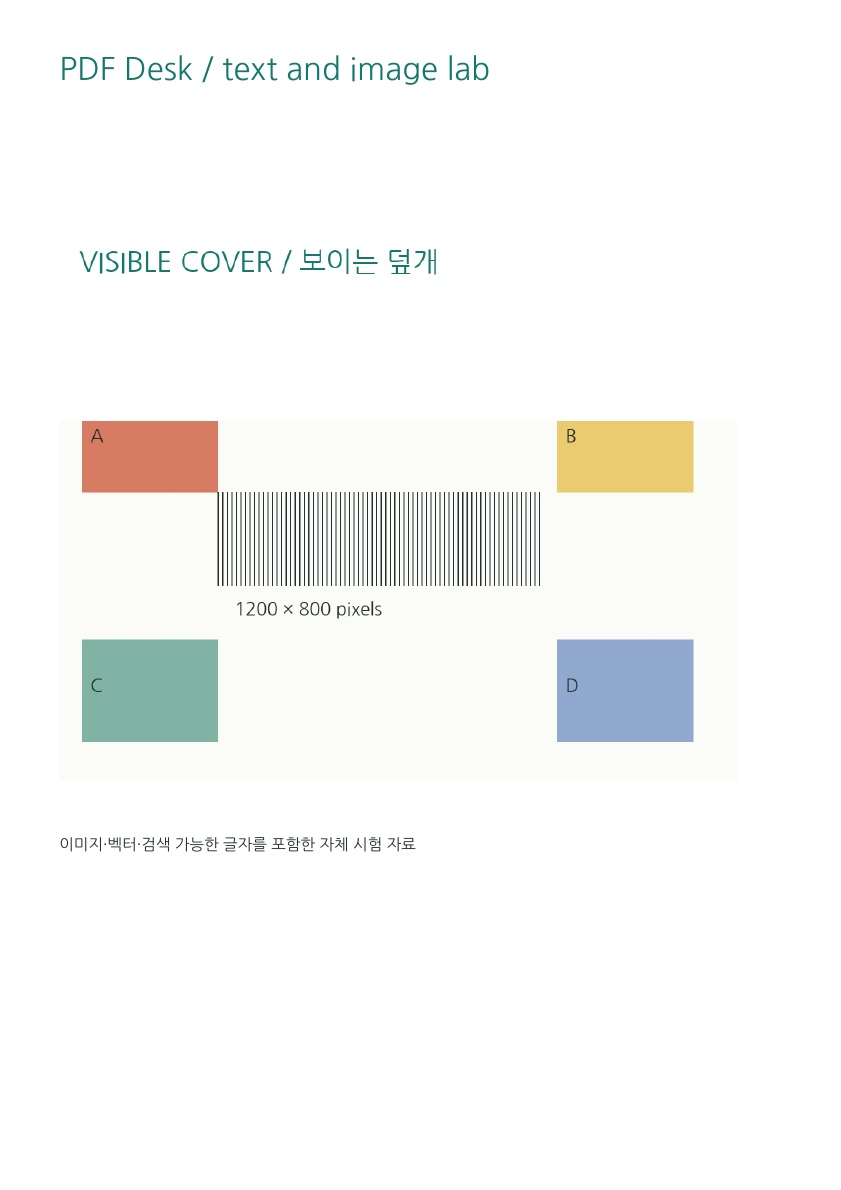
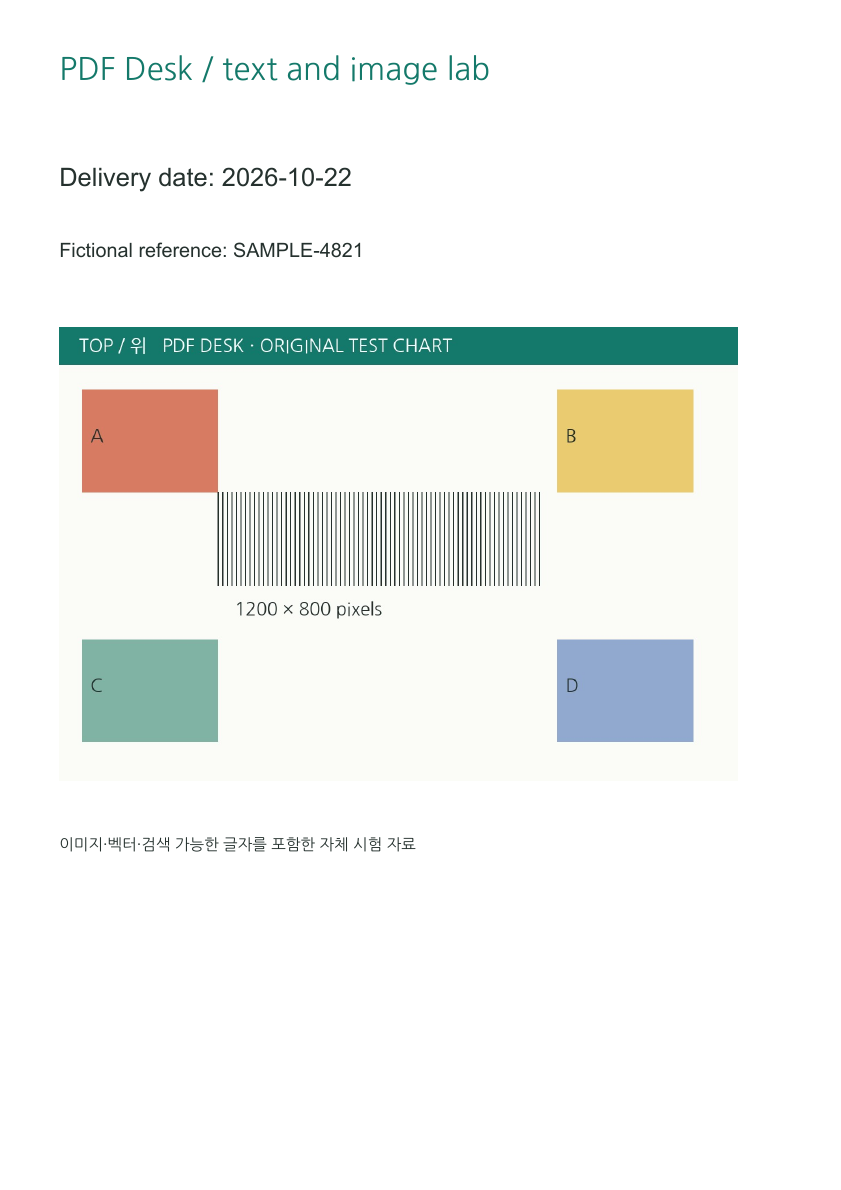
One output adds an opaque image using the PDF Desk engine. The other is a separate experiment that lowers the CropBox top edge to hide the date and reference. Cropping is not an app feature; PDF Desk blocks editing nonstandard CropBoxes.
Observed facts
pypdf extracts SAMPLE-4821 from both files. A clean-looking page still contains the original wording. Adobe also distinguishes hiding a page area from deleting its data. Smaller file size or an unsuccessful search alone cannot establish complete removal.
Reproduce this failure yourself
- Use the fictional source below rather than sensitive information. Locate its reference number.
- Open the covered and cropped outputs and compare the same visible area.
- Search or copy the reference from each output and compare the independent extraction evidence. If your reader finds nothing, that alone is not evidence of deletion.
Product boundary
PDF Desk does not provide secure redaction. Do not treat new text, images, borders or the maker’s Fill mode as privacy removal. This experiment detects retained wording; it is not an audit of every possible hidden data channel.
Files to inspect yourself
- Original with real text (text-source.pdf)
- Educational covered output (overlap-covered.pdf)
- [Educational failure] Educational failure · cropped view (FAILURE-cropped.pdf)
Crop coordinates, scale, source hashes and fresh extraction · Rechecked: 2026-10-24 · pdftoppm version 26.07.0 · pypdf 6.10.0 · pdfplumber 0.11.9. Original PDFs were not modified.
Environment, date and evidence boundaries
Checked: 2026-10-23 · Windows / Chrome 155 · pdf-lib 1.17.1 · PDF.js 6.4.299 · fontkit 1.1.1 · pypdf 6.10.0 · pdftoppm version 26.07.0. PDFs and artwork are original; NanumGothic uses OFL-1.1. Tables and files record direct observations; explanations interpret those structures. Physical OS keyboard input, phones and every PDF reader are outside this test.
Official reference explanations (separate from measurements): Adobe: cropping hides rather than deletes content
Reproduction code: scripts/lab-inputs.py, lab-outputs.mjs, lab-derived.py, tests/readiness-browser.mjs and tests/lab-pdf.py.